HDMI Cables for Soundbar: How to Use ARC & eARC Correctly

Tired of settling for lackluster audio from your soundbar or home theater setup? The secret to unlocking immersive, theater-quality sound often lies in properly matching and using ARC/eARC HDMI cables. Skip the guesswork—this guide breaks down everything you need to know in minutes.


1. Why HDMI Cable Matching Matters
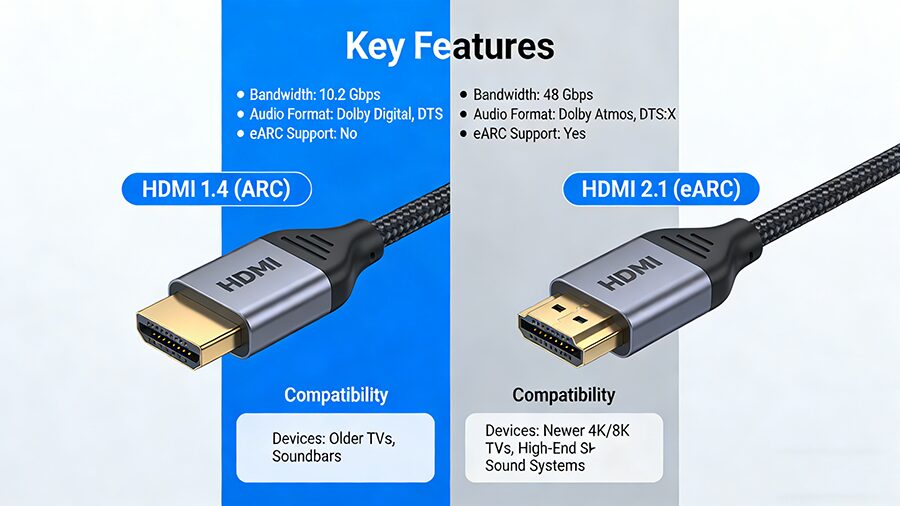
Using the wrong HDMI cable with ARC/eARC can render key features useless or deliver subpar audio:
  • ARC requires HDMI 1.4+ cables to support basic audio return.
  • eARC demands HDMI 2.1 cables for uncompressed 3D audio like Dolby Atmos.
  • Low-quality cables may cause signal dropouts or fail to activate ARC functionality entirely.


2. ARC vs. eARC: Key Differences at a Glance

This quick comparison table helps you choose the right setup for your needs:


FeatureARC (Audio Return Channel)eARC (Enhanced Audio Return Channel)
Maximum Bandwidth18 Gbps (HDMI 1.4+)48 Gbps (HDMI 2.1)
Supported Audio FormatsDolby Digital, DTS, PCM (5.1 max)Dolby Atmos, DTS:X, LPCM 7.1, 3D Audio
Audio DirectionSingle-way (TV → Soundbar)Bidirectional (faster sync + 4K video pass-through)
Ideal ForBudget soundbars, basic 5.1 setupsHigh-end home theaters, Atmos-enabled soundbars
Device CompatibilityMost TVs/soundbars post-2013Newer models (2019+) with HDMI 2.1 ports


3. Step-by-Step Guide to Using ARC/eARC Cables

Follow these simple steps to get your audio setup running smoothly:

Step 1: Identify ARC/eARC Ports

Locate the labeled ports on your TV and soundbar—they’ll clearly say “ARC” or “eARC” (often colored white or orange for visibility).

Step 2: Select the Correct Cable

  • For ARC: Use any HDMI 1.4 or higher cable (look for the HDMI logo with “ARC” support).
  • For eARC: Use a certified HDMI 2.1 cable to ensure maximum bandwidth for uncompressed audio.


Step 3: Physical Connection

Plug one end of the cable into your TV’s ARC/eARC port, and the other into your soundbar’s corresponding port.

Step 4: Enable ARC/eARC in Settings

  • On your TV: Navigate to Sound Settings > Audio Output > Select ARC/eARC as the default audio source.
  • On your soundbar: Toggle on ARC Mode (often found in “Input Settings”).


Step 5: Test Your Audio

Play a movie or song with surround sound (e.g., Dolby Atmos content) to confirm audio plays through the soundbar and all channels are working.

4. Common Mistakes to Avoid

Using an old HDMI cable for eARC: HDMI 2.0 or lower can’t support eARC’s 48 Gbps bandwidth.
Forgetting to enable ARC in settings: Even with the right cable, the feature won’t activate manually.
Plugging into non-ARC ports: Standard HDMI ports don’t support audio return functionality.
Skipping firmware updates: Outdated TV/soundbar firmware may cause ARC/eARC compatibility issues.


Final Tips for Optimal Performance

  • Keep HDMI cables under 10 feet to minimize signal loss.
  • Use shielded cables to avoid interference from other electronics.
  • For eARC, ensure your TV supports the same audio formats as your soundbar.

评论

此博客中的热门博文

USB C to HDMI Cables: A Complete Breakdown

USB-C’s Next Leap:240W &80Gbps Soon

USB C Charger: How to Pick the Best One